A PDM vault is made up of two parts that both need to be backed up together: the archive folder (the actual file data on disk) and the vault database (the metadata, file history, and workflow state in SQL Server). This guide covers backing up both, so you have everything needed to fully restore the vault if a later change doesn't go as planned.
Before you start
Confirm you have the following.
- Administrator access to the PDM Archive Server and to the SQL Server instance hosting the vault database.
- A time when no users are checked into the vault. (backing up while files are checked out or in use can produce an inconsistent backup)
- Storage space available equal to at least the combined size of your archive folder and database, plus room to grow.
Confirm your archive folder location
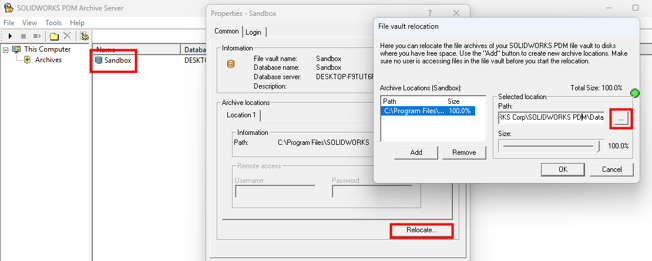
- Open the Archive Server Configuration Tool on your PDM Archive Server.
- Double click on Archives.
- Right click on your vault from the list, select Properties.
- Select Relocate.
- Under the Selected Location section, select the three dot browse icon to navigate to the archive location.
Stop vault activity
- Notify all PDM users that the vault will be unavailable during the backup window.
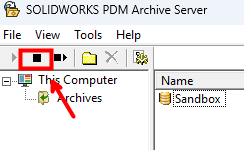
- In the Archive Server Configuration Tool, select your vault and click Stop to pause the archive server for that vault.
- Confirm no users remain checked into files by checking active sessions in PDM Administration.
Back up the archive folder
- In Windows File Explorer, navigate to the archive folder path you confirmed earlier.
- Copy the entire folder to your backup destination (a separate drive, network location, or backup server).
- Confirm the copied folder size matches the original before continuing.
Back up the vault database
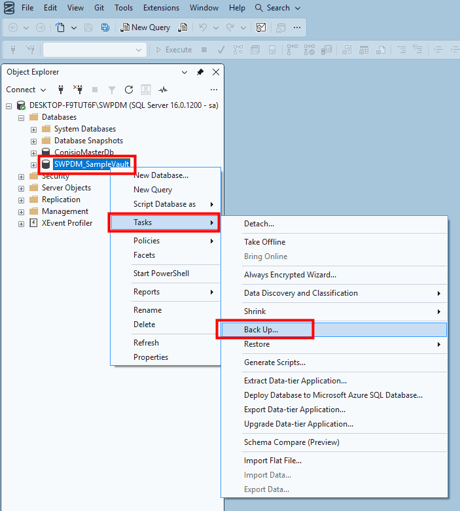
- Open SQL Server Management Studio (SSMS) and connect to the instance hosting your vault database.
- In Object Explorer, expand Databases and locate your vault database (named after your vault).
- Right-click the database, select Tasks, then select Back Up.
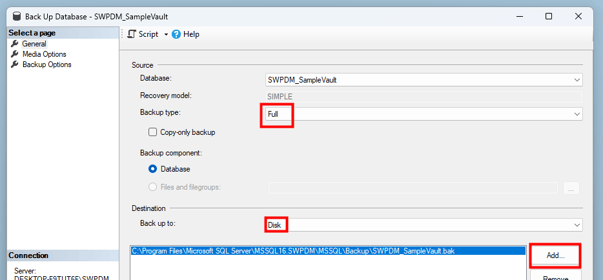
- Confirm the backup type is set to Full, and set a destination path for the backup file.
- Click OK to run the backup.
- Confirm the backup file was created at the destination path and note its size.
Restart vault activity
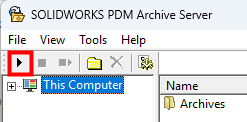
Once your backup is completed, go to the Archive Server Configuration Tool, select your vault, and click Start to resume normal operation unless you're proceeding immediately to an upgrade step.