
Overview
SOLIDWORKS Toolbox includes a large library of standard hardware, but many teams use custom fasteners, fittings, or organization-specific components. Toolbox allows you to add these custom parts so they behave just like standard Toolbox items, complete with automatic sizing, configuration control, and smart mating behavior.
This article walks you through preparing your custom part, adding it to the Toolbox library, and configuring it for use in assemblies.
Prerequisites
Before adding a custom part to Toolbox, ensure:
-
You have write permissions to the active Toolbox location.
- Your custom part is saved as a SOLIDWORKS part file, and configured appropriately if desired.
Steps to Add a Custom Part to SOLIDWORKS Toolbox
Prepare Your Custom Part File
Your custom part should meet the following requirements:
-
Saved as a .SLDPRT file
-
Contains configurations if multiple sizes or variations exist
-
Avoids external references
TIP: If using configurations, name them in a clear, structured way (e.g., “M8x25”, “0.25"-20x1.00”).
Open the Toolbox Settings Tool
-
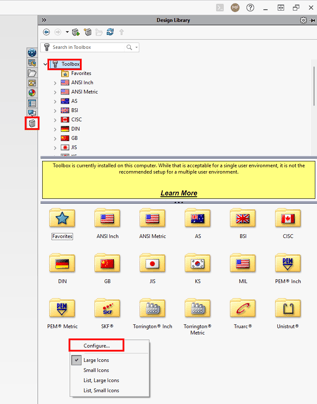
Open the SOLIDWORKS Design Library Task Pane
-
Expand Toolbox
-
Right click anywhere inside the Toolbox navigation and select Configure
Choose Where You Want the Custom Part to Live
In Toolbox Settings:
-
Go to the Customize your hardware section.
-
Expand the folder tree to choose the Standards and category where your custom component should appear (e.g., ANSI Inch > Bolts and Screws).
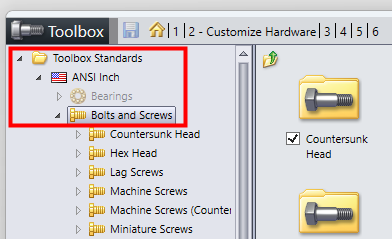
TIP: If no existing Standard or category is appropriate, you can create a new folder for custom hardware types.
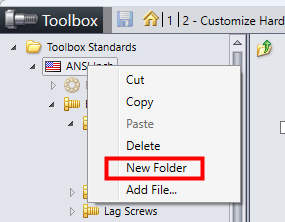
- If you would like to create a new Standard (e.g., ANSI Inch), right-click on the Toolbox Standards folder and select New Folder.
- If you would like to create a new category (e.g., Bolts and Screws), right-click on the Standards folder you would like the category to live in and select New Folder.
Add Your Custom Part as a Toolbox Component
-
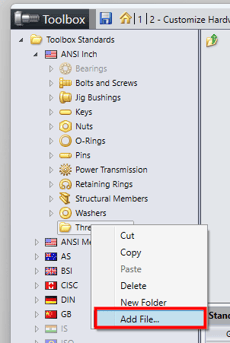
Right-click the target component category folder and select Add File.
-
Browse to your custom .SLDPRT file and select it.
-
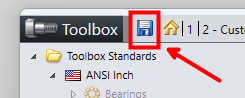
Click Save in the Toolbox Settings tool.
- Select the Refresh button in the Design Library task pane.
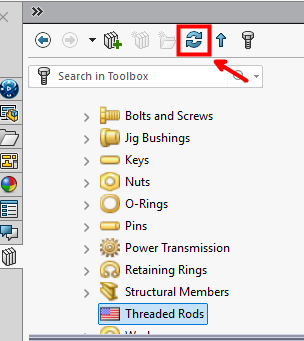
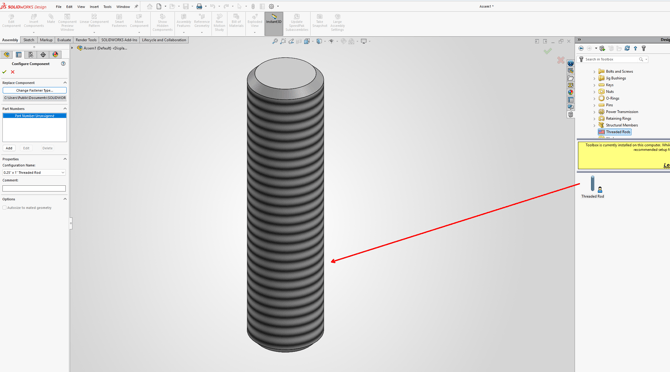
Your custom part will now appear in the Toolbox feature tree and can be inserted like any standard component.
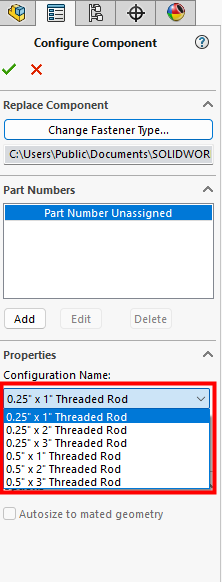
TIP: If your SOLIDWORKS component has different configurations to represent different sizes, you can select those when inserting the Toolbox component into an assembly. You can manage these configurations manually, or through a design table if you anticipate a large number of configurations.
For further assistance, please contact the SWYFT Support team at support@swyftsol.com and we’ll be happy to assist.