
Tip: Back saving in SOLIDWORKS, while possible, only saves back two-version-years. If, for instance, you are using an installation of SOLIDWORKS 2025, you'll be able to back save to 2024 or 2023, but no earlier. SOLIDWORKS Design 2026 will back save to 2025 or 2024, etc.
Saving a Part File as an older version in SOLIDWORKS Design
To save a file as an older version in SOLIDWORKS Design, follow these steps:
-
Open the File:
- Launch SOLIDWORKS and open the file you wish to save as an older version.
-
Access the Save As Function:
- Click on File --> Save As (or "Save as New" if you are using 3DEXPERIENCE as your default data management system) from the dropdown menu.
-
Choose the Save Location:
- In the dialog that appears, select Save to this PC, or choose your desired location.
-
Select the File Type:
- In the Save as Type dropdown menu, you can choose the version-year you want to save the file in.
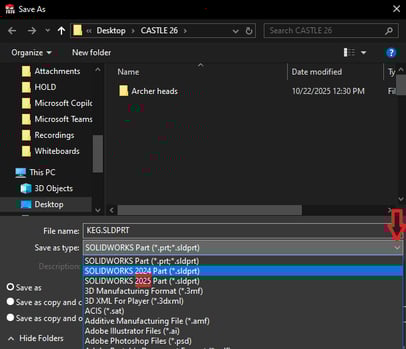
- In the Save as Type dropdown menu, you can choose the version-year you want to save the file in.
-
Complete the Save Process:
- Click Save to create the older version file copy.
Note: This is a "save-as-copy" type command and saves the file as its own entity - this means that it will not replace the current files unless you manually do so after this save action is complete.
Saving an Assembly File as an Old Version in SOLIDWORKS Design
-
Follow the Steps Above:
- Use the same steps as above to access the Save as function.
-
Select the Previous Version:
- In the Save as Type dropdown, choose the Assembly in the version-year you want to save the file in.
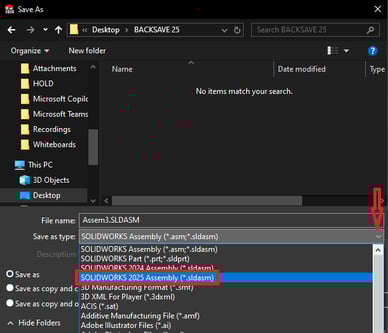
- Select a location for your assembly. A new or separate folder is recommended since it will also create a back saved copy of the individual parts in the assembly in that folder automatically.
- In the Save as Type dropdown, choose the Assembly in the version-year you want to save the file in.
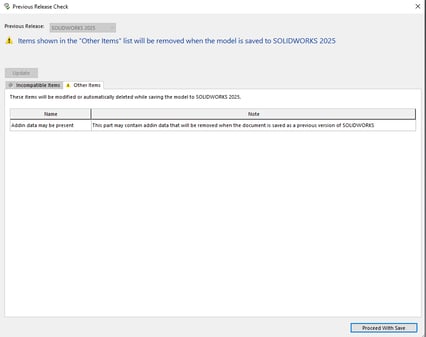
- Be aware that if your models or assemblies contain features specific to the newer version (e.g., the "Z-up" modeling environment introduced in SOLIDWORKS 2025), this data may be lost during the back-save process. It is advisable to review your files to ensure all necessary data is retained. If there is any potential loss of integrity, SOLIDWORKS will alert you prior to completing the save.
Using Pack-and-Go to Save Older Versions in SOLIDWORKS Design
If you need to share a full set of files and drawings while converting them to a selected previous version-year, you can use the Pack-and-Go feature:
-
First, open the Access Pack and Go:
- Click on File-->Pack and GO
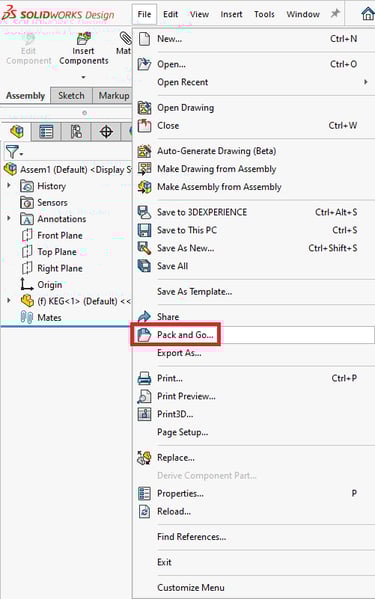
- Click on File-->Pack and GO
-
Select File types you wish to include:
- Choose the files you wish to include in the package: This can include Drawings, referenced parts, suppressed components, custom appearances, and Simulation data.
-
Set the Version:
- Similar to the Save As process, you can select the version to which you want to back-save the files.
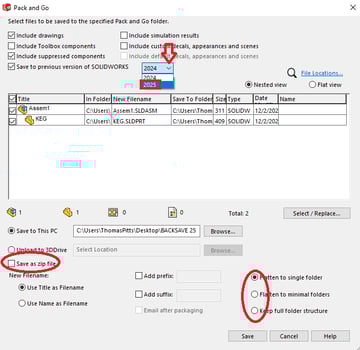
- Click Save to complete the process. It will create a full set of parts, assemblies, and drawings in the destination folder, based on the options you selected.
- Similar to the Save As process, you can select the version to which you want to back-save the files.
Note: Pay special attention to the save as .zip file and folder structure options. These can greatly impact your collaborator's experience with the files.
Summary
Saving a file as a previous version-year file in SOLIDWORKS is a straightforward process that allows for flexibility when collaborating with users on older versions. Utilizing the Pack and Go feature can further enhance your workflow when managing multiple files, assemblies, and their drawings. Always check for compatibility issues when back-saving to avoid losing critical data.
If you encounter any issues during this process, please contact the SWYFT Support team at support@swyftsol.com for assistance.