
This article shows you how to control whether 3DEXPERIENCE blocks, warns, or ignores duplicate file titles when saving SOLIDWORKS Parts, Assemblies, or Drawings to 3DEXPERIENCE.
Before you start
You need platform administration access to reach the Collaborative Spaces Configuration Center.
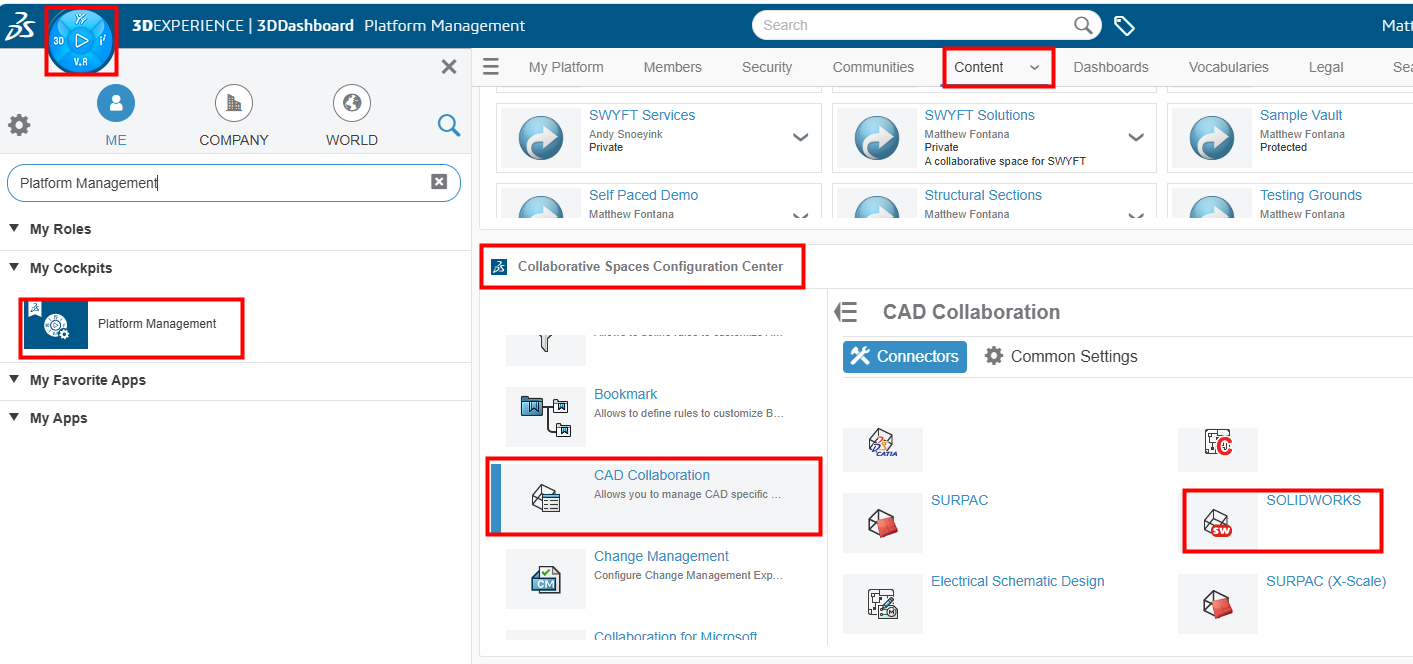
Access the CAD Collaboration Settings
- Log in to the 3DEXPERIENCE platform.
- Open the Platform Management dashboard.
- Select the Content tab.
- Open the Collaborative Spaces Configuration Center widget.
- Select the CAD Collaboration section.
- Select SOLIDWORKS.
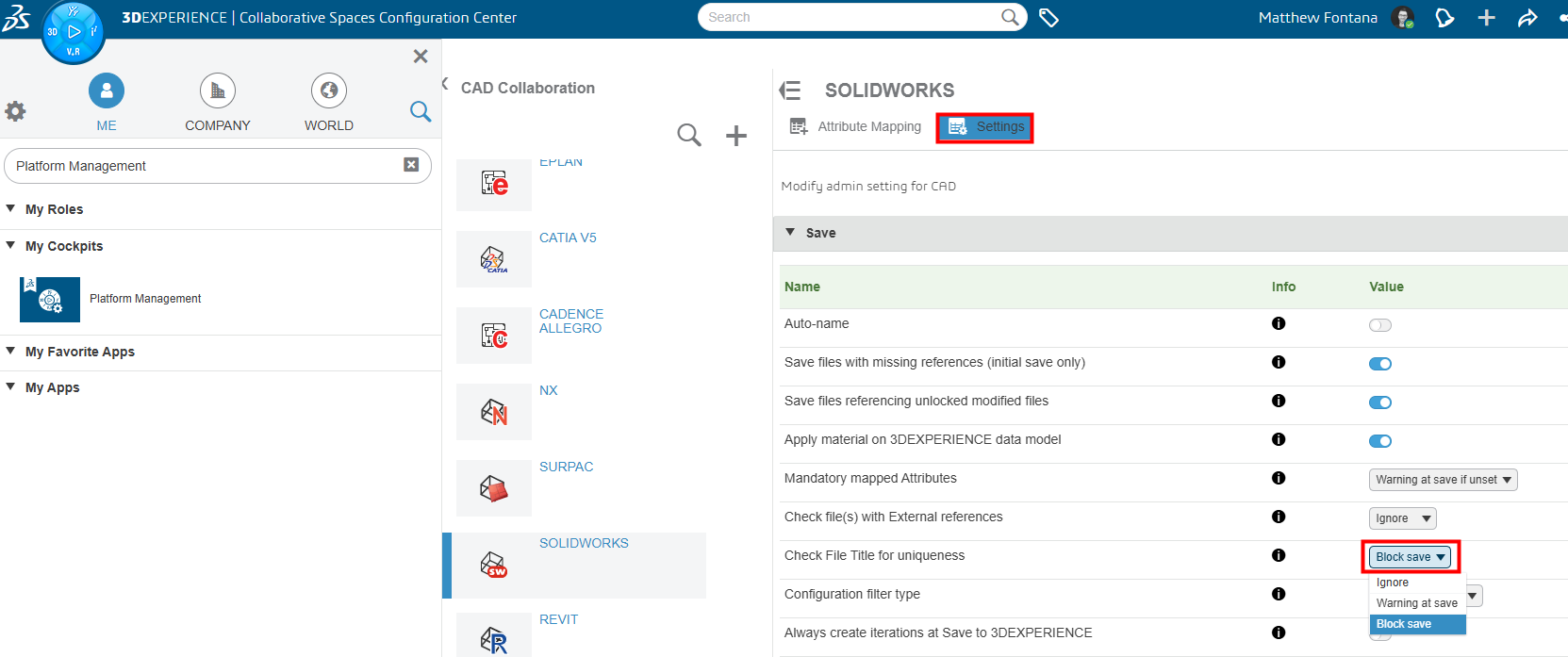
- Select the Settings tab.
Set the Duplicate Title Check Setting
- Locate Check File Title for Uniqueness.
- Choose one of the following options:
- Ignore — Allows the save to complete even if a Part, Assembly, or Drawing with the same title already exists in 3DEXPERIENCE.
- Warning at Save— Displays a warning message but still allows the save to complete.
- Block Save— Stops the save from completing.
What This Setting Does Not Do
This setting only checks titles at the moment of saving a new file to the platform. It does not check or restrict renaming files that are already saved. If you rename two existing files to match, the platform allows it. This setting will not flag or reverse that change.
For further support, submit a ticket or access support contact information at https://www.swyftsol.com/support.