
Use either 3DEXPERIENCE App:
- Bookmark Editor
- Content Explorer
Download a ZIP of Selected Files:
-
Go to your 3DEXPERIENCE Platform page and log in.
-
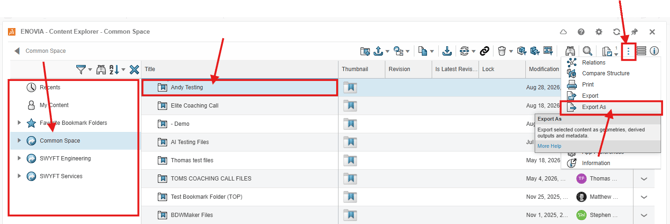
Click on the Compass (blue circle in top left) and select the Content Explorer App.
-
In the app, select the 3DSpace where the data is stored in the navigation tree.
-
Then, select a bookmark(s) and/or file(s) from the list.
-
Now, click on the 3-Dot menu icon in the upper right hand corner of the app and select 'Export As'.
-
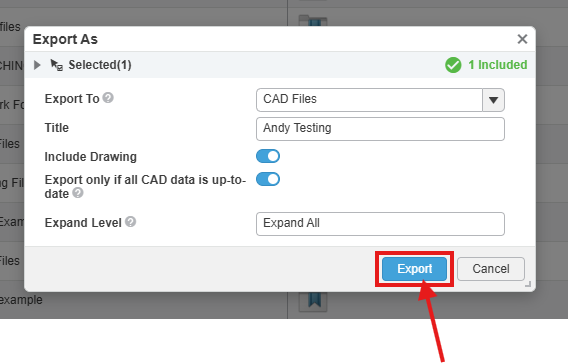
Edit your options in the pop-up window, then select 'Export'.
-
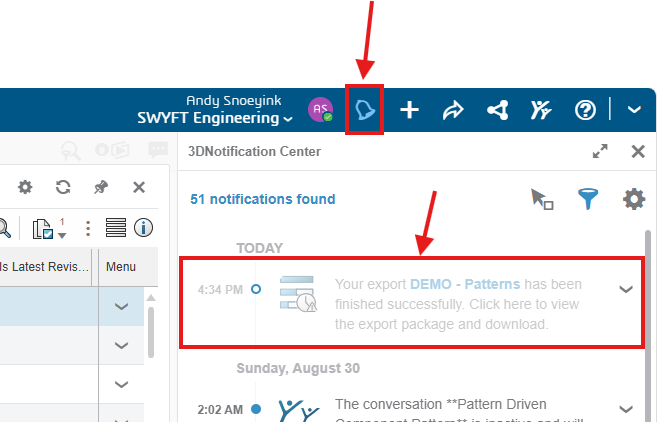
Once your files are ready to download, a notification will appear on the bell icon in the top right of your interface. Click that to open your notifications pane, then select the notification.
-
This will open the CAD Data Processor Monitoring App. Your file will be ready to download on the right hand side. Click the download icon.
