
NOTE: The Two Factor Authentication requires an authenticator application to be installed on another device, such as a smartphone or tablet. It is best to have this installed ahead of time.
Starting the Two Factor Authentication setup:
-
Log in to the 3DEXPERIENCE platform
-
If prompted, select your main tenant
-
- Click on your Silhouette or user photo, if you set one up and select My Profile
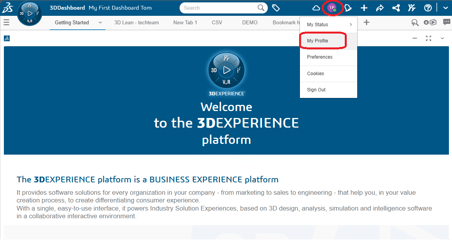
- Select Preferences
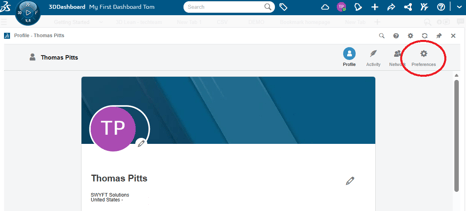
- Under the Two Factor Authentication category, select Manage
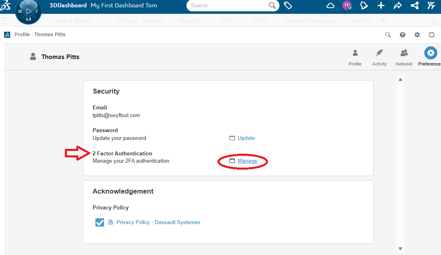
- You'll be prompted to log into your Authenticator and follow its sepecific steps to complete the process
Deactivating the 2FA:
If for some reason you wish to disable the 2FA from your 3DEXPERIENCE account, please see the below steps.
-
Log into the Platform and follow steps 1-5 as outlined above
-
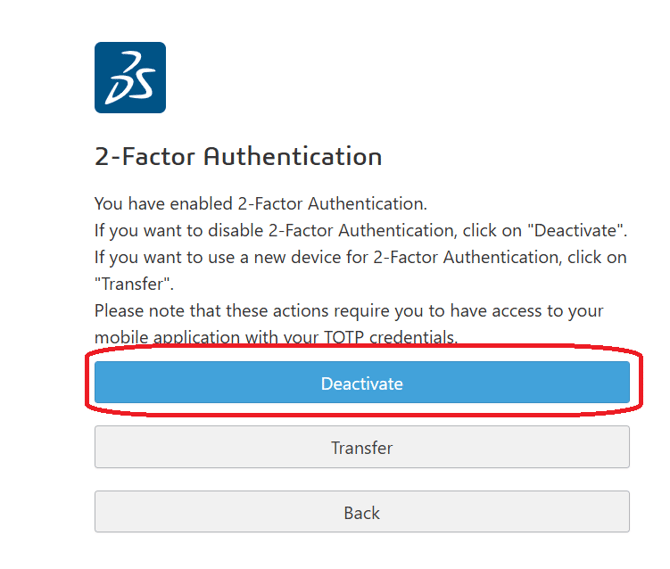
Select Deactivate
-
The Platform will guide you through the remainder of the steps.
For further assistance, please contact the SWYFT Support team at support@swyftsol.com and we’ll be happy to assist.