
In SOLIDWORKS 2025 SP3 and newer, you may notice that your centerlines or center marks appear as solid lines, or with some other style, rather than the expected dashed style. This change is likely due to how SOLIDWORKS now applies layer styles to centerline annotations. Fortunately, it’s easy to fix, either by switching to the correct layer or activating the Per Standard layer prior to creating the centerline.
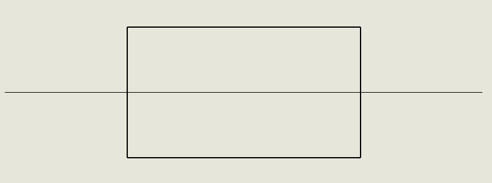
-
Open your drawing file.
-
Enable the Layer toolbar (if it’s not already visible).
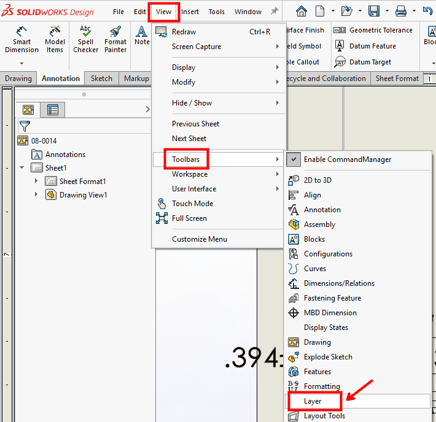
-
In the drop-down layer list, select -Per Standard-.
-
This layer setting forces SOLIDWORKS to apply the default line style (usually dashed) based on the drawing standard.
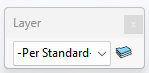
-
-
Add a centerline, and it should now appear with the correct dashed pattern.
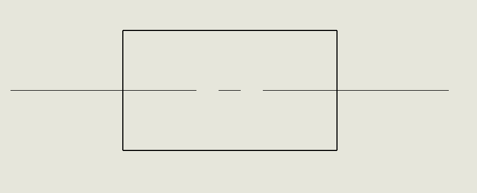
If your centerlines are still appearing with the wrong format, record the process you are using to add a centerline using the SOLIDWORKS Rx tool and share the SOLIDWORKS Rx ZIP file with the SWYFT Support team at support@swyftsol.com for further assistance.