
The 3DEXPERIENCE SOLIDWORKS Task Host uses your own SOLIDWORKS installation to convert designs into Derived Outputs and attach them to the relevant model/drawing in 3DEXPERIENCE, with no manual export. It is an alternative to Cloud Conversion, Derived Format Converter, and Task Scheduler, not a replacement for them. This article shows you how to activate it on your tenant, create the conversion rule, and start it on the computers that process conversions.
Before you start
-
Install SOLIDWORKS Design (Standard, Professional, Premium, or Ultimate) with the connector to 3DEXPERIENCE.
-
Have a 3DEXPERIENCE ID with the Collaborative Designer for SOLIDWORKS role or a SOLIDWORKS Design named user license for running conversions.
-
Have platform administrator credentials for the first-time setup and for creating the conversion rule.
-
Keep the computer connected to the 3DEXPERIENCE platform. Tasks do not run if the computer is offline, the Task Host is logged out, or MySession is disabled.
Start the Task Host
-
On the computer you would like to run the conversions, open the folder that contains SWTaskHost.exe. The default location depends on your installation:
-
Design with SOLIDWORKS add-in (Standalone/Network Licenses): C:\Program Files\Dassault Systemes\BXXXxcadconnectors\win_b64\code\bin\SWTaskHost
-
3DEXPERIENCE SOLIDWORKS Design (Named User Licneses): C:\Program Files\Dassault Systemes\SOLIDWORKS 3DEXPERIENCER20XXx\win_b64\code\bin\SWTaskHost
-
-
Double-click SWTaskHost.exe.
NOTE: The version number in each path matches your installed release. For example, BXXXxcadconnectors > B428xcadconnectors or SOLIDWORKS 3DEXPERIENCE20XXx > SOLIDWORKS 3DEXPERIENCER2027x.
Activate conversions on your tenant (platform administrator, one time)
-
In the Task Host login window, log in with your platform administrator credentials. This registers SOLIDWORKSTaskHost (Asynchronous) as an available converter in Derived Format Management.
-
Click Options > Tenant.
-
Select Activate SOLIDWORKSTaskHost conversions.
After an administrator completes this step once, any user with a SOLIDWORKS Design named user license or the Collaborative Designer for SOLIDWORKS role can log in to the Task Host to run conversions.
Create a Derived Output conversion rule (platform administrator)
-
Log into 3DEXPERIENCE, open Platform Management > Collaborative Spaces Control Center > Derived Format Management.
-
Create a new conversion rule.
-
In the Converter list, select SOLIDWORKSTaskHost (Asynchronous) for the content type you want to convert.
-
Select the source file Type (i.e., Drawing/Part/Assembly).
-
Select the Target Format. The list shows the formats the Task Host supports.
-
For Event, select what triggers the conversion:
-
On Save from Connector: a user saves from the SOLIDWORKS connector.
-
On Status Change: a status or maturity change occurs.
- If selecting status change, you will need to select the desired target state that will trigger the conversion when met.
-
On Demand: a user manually requests the conversion.
-
-
Save the rule.
Add a computer to process conversions
Repeat these steps on each computer you want to process conversions.
- Start SWTaskHost.exe on the computer, as described in "Start the Task Host."
- Log in with a 3DEXPERIENCE ID that has the Collaborative Designer for SOLIDWORKS role or a SOLIDWORKS Design named user license.

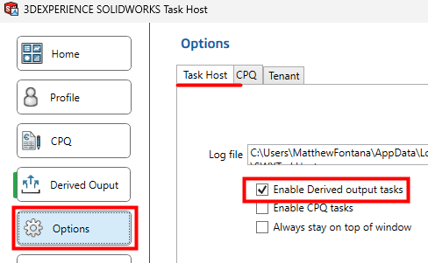
- Click Options.
- Under Tasks to Run, select Enable Derived Output Tasks.
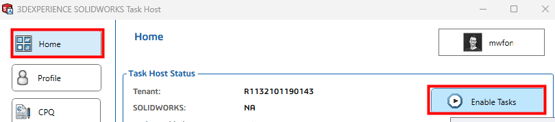
- Click Home.
- Confirm tasks are enabled and if not select Enable Tasks.
When the event in your rule occurs, the Task Host launches SOLIDWORKS, opens the model or drawing, runs the conversion, and writes the result back to the platform. No one opens the file manually. Title-block details, notes, and annotations carry through to the output.
Monitor conversion tasks
-
View task status, errors, and history in the Derived Output tab.
-
View detailed messages in the log file saved to your Log File Location specified on the Options tab.
Close, Reopen, or Exit the Task Host
Closing the Task Host window does not exit the app. It keeps running in the Windows notification area (system tray) and continues processing tasks.
- To reopen the window, right-click the Task Host icon in the notification area and click Open.
- To exit the app completely, right-click the Task Host icon and click Exit.
For further support, submit a ticket or access support contact information at https://www.swyftsol.com/support.