
Overview
This article explains how to import an STL file as referenceable, interactive geometry instead of a graphic in SOLIDWORKS, along with steps to convert it into a solid model if needed.
Tip: While this article references .stl files, SOLIDWORKS can use a similar methodology to open .obj, .off, and .ply files too!
Importing an STL File
- Open SOLIDWORKS: Start the application.
- Open Command: Click on the open command to navigate to the STL file you want to import.
- Please note, this must be performed in the SOLIDWORKS Open menu, or you won't be presented with the options listed below.
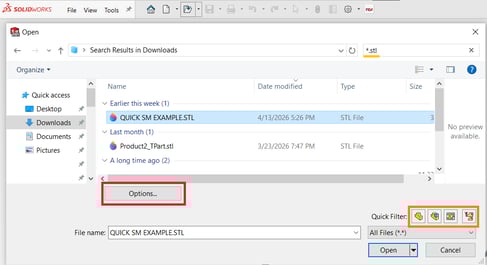
- Select the File: Click on the file you want to open, but od not open it yet. See steps and screenshot below
- You can optionally filter the search by file type, in this case search " *.stl " in the search bar
- If you do not see any .stl files, but expect they should be there, check to make sure that your SOLIDWORKS Quick-filter options are disabled
- Click once to highlight the .stl file you want to open and click the "Options" button before opening the file
- Choose File Type: In the options screen, select the desired file type for conversion:
- Solid (creates a solid body(s) as defined by the mesh, and is interactive)
- Surface (creates a surface(s) as defined by the mesh, and is interactive)
- Graphical (creates only graphical data, and is very limited in its interactions)
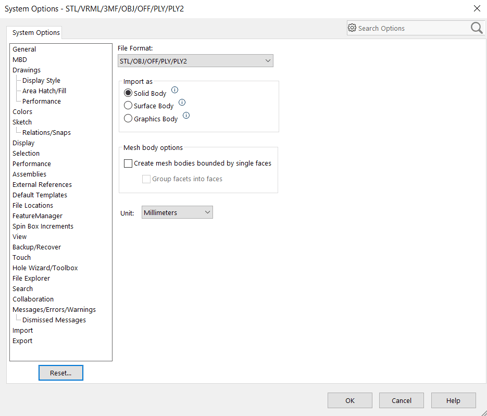
- Open the File: Click "OK" and then "Open" to import the file.
Considerations
- Face Count: If the STL file has too many faces, SOLIDWORKS may struggle to convert it to a solid model. In such cases, it may open as a surface or graphical only.
- Performance: Larger STL files can take a significant amount of time to open as SOLIDWORKS needs to create a mathematical structure for the entire file.
- System requirements: A fast CPU and a capable GPU can improve performance when viewing and manipulating mesh files, but sufficient RAM is critical to open. SOLIDWORKS must be able to load all STL triangle data into system memory during import; if it cannot, the file will fail to open at all. Large STL files may require 64 GB of RAM or more, and available memory will be reduced by other running applications.
Alternative Solutions
If the STL file cannot be converted directly into a solid model:
- Reduce mesh density using a decimator (for example MeshLab or Blender): While not the only tools available, mesh decimation utilities can reduce the number of faces in the mesh file with minimal visual affect on quality of the file, making it easier for SOLIDWORKS to open. In the example below, we reference MeshLab:
- Open the STL file in MeshLab.
- Navigate to
Filters > Remeshing... > Simplification: Quadratic Edge Collapse Decimation. - Adjust the settings to reduce the face count (default is 50% reduction). Target facet count may vary depending on your system and intended use, but a general rule of thumb is to aim for 300k facets
- Apply the changes and export the modified mesh.
- Open in SOLIDWORKS with your intended mesh impot settings
Conclusion
By following the steps outlined above, you can import an STL file as a mesh in SOLIDWORKS and convert it into a solid model if necessary. If you encounter issues with large STL files, consider using MeshLab to simplify the mesh before importing it into SOLIDWORKS.