
Important note: Starting November 15th, 2025, SOLIDWORKS has updated its product names. This article applies to Named User Licenses of SOLIDWORKS Design. If you were using 3DEXPERIENCE SOLIDWORKS (also known as SOLIDWORKS Connected), you can continue the installation with these instructions, as the steps will be the same.
SOLIDWORKS Design is a professional 3D CAD software used to create and manage mechanical designs across industries. With Named User Licensing, access to SOLIDWORKS is assigned to individual user accounts instead of specific devices, allowing for flexible access across multiple machines.
In this article, you’ll learn how to install SOLIDWORKS Design if you have a Named User License. We'll guide you through preparing your system, downloading the installer, and signing in with your 3DEXPERIENCE ID to activate your license.
Once completed, you’ll be able to launch SOLIDWORKS on any supported device by simply signing in, making it easy to work from multiple locations while keeping your license and preferences with you.
Before You Begin
SOLIDWORKS offers multiple license types, and the installation steps differ depending on which one you use.
To ensure you follow the correct process, first confirm your license type:
-
Standalone License – activated on a single device
-
Named User License– tied to a user account rather than one computer
- Network License – managed through a SolidNetWork License Manager on a server and shared across multiple users
This guide reviews the installation steps if you have a Named User License.
Prerequisites
Before beginning the installation, confirm the following:
- You have an active 3DEXPERIENCE platform login.
- Your account is assigned the 3DEXPERIENCE SOLIDWORKS or SOLIDWORKS Design role.
- You can check your roles via the Compass app list in your browser (blue circle with the play button in the top left), then find the Members Control Center in your My Apps list. Then you can click on the "i" next to your name and look for the appropriate roles to be applied. Contact your platform administrator if the role is missing.
- Your device meets the SOLIDWORKS System Requirements.
TIP: If you have access to any SOLIDWORKS Standalone or Network Licensed add-ins (e.g., SOLIDWORKS Composer, SOLIDWORKS Flow, etc.), have those serial numbers ready before you get started for a smooth installation.
For assistance accessing your serial numbers, please reference this guide on using the SOLIDWORKS Admin Portal. If further assistance is needed, please contact your Value Added Reseller (VAR).
Installation Steps
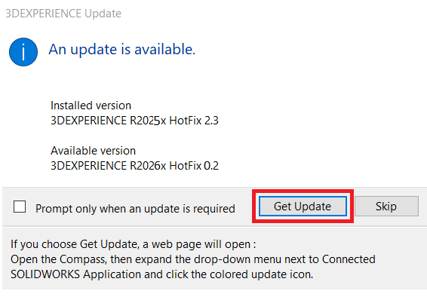
If you go to launch SOLIDWORKS Design and see an image similar to below, please continue with the update steps to continue using your software:
- Open a browser and navigate to the 3DEXPERIENCE platform.
- Sign in with your credentials.
- In the Compass app list, locate and click the SOLIDWORKS Design app icon.
- Wait 10–15 seconds for the platform to detect if the 3DEXPERIENCE Launcher is already installed.
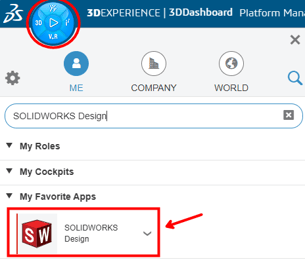
- If prompted, download the 3DEXPERIENCE Launcher .MSI file and run the installer.

- Once the launcher is installed, a 3DEXPERIENCE Launcher prompt may appear. Select Always to avoid repeated warnings in future launches.

- When the Role Selection window appears, select Install All Roles Containing SOLIDWORKS Design.
- Alternatively, choose Install All Granted Roles if multiple roles have been assigned to your account, and you would like to install them now.

- Wait for the installation wizard to appear and follow on-screen prompts to complete the installation process.
- You will see a screen similar to this, outlining installation information and location.
Click Next to continue your SOLIDWORKS Design installation!
- You will see a screen similar to this, outlining installation information and location.
NOTE: If you encounter an issue where your 3DEXPERIENCE Launcher repeatedly asks you to install, please see this article for quick steps to resolve this behavior.
Once the installation has finished, click on SOLIDWORKS Design in your app list in your web browser once again to launch it. After the initial launch from the web browser, you can continue to launch from the platform in the web browser, or from the Desktop Shortcut that will be automatically created.
Getting Support
If SWYFT Solutions is your Value-Added Reseller (VAR), our support team is happy to help you get up and running. You can email us at support@swyftsol.com, or call us at 616-631-3044.
If your licenses are supported by a different partner, don’t worry, their support team will be the best point of contact for assistance specific to your account!