
This article shows you how to map a drawing card variable to the referenced model's custom properties in SOLIDWORKS PDM. Once it's set up, you update a value on the part or assembly card, and the drawing card and title block update with it.
Before you start
- You need a PDM user account with permission to edit cards and variables in the PDM Administration tool.
- The variable you want to share (for example, Part Number) must already be mapped to a custom property on your part or assembly card.
- Add the same custom property to your drawing template. This keeps drawings consistent instead of relying on the property copying over from the model at check-in.
Map the drawing card variable
- Open the PDM Administration tool and log in to your vault.
- Expand Cards, then open your drawing card in the Card Editor.
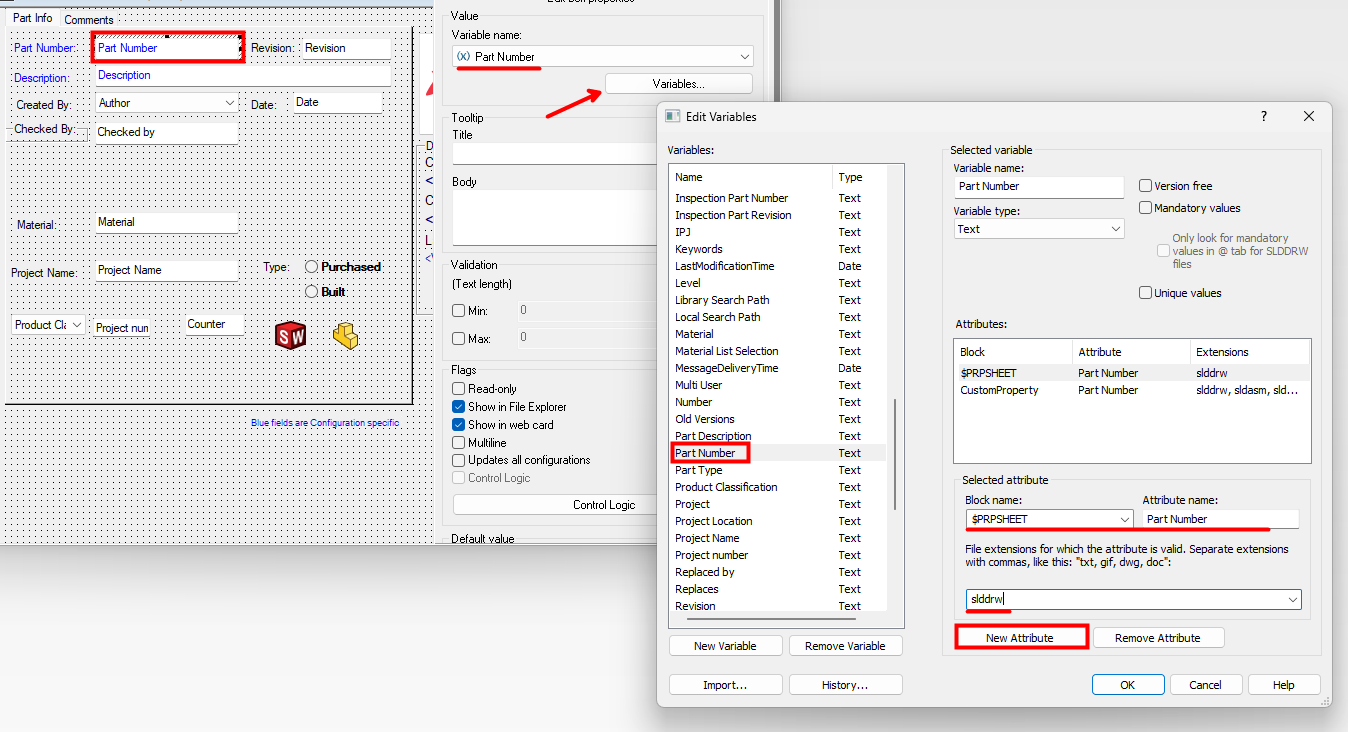
- Select the control that uses the variable you want to link and confirm it has the desired variable selected.
- Click Variables...
- Under Attributes, click New Attribute.
- In the Block name field, enter $PRPSHEET in all uppercase.
- In the Attribute name field, enter the custom property name exactly as it appears on the part or assembly (for example, Part Number).
- In the File extensions field, enter slddrw.
- Click OK.
- Save the card.
Test the link
- Open a part that has a value in the linked property (for example, Part Number = 123456789).
- Create a new drawing that references the part.
- Save the drawing to the vault.
- Confirm the drawing's custom properties and data card show the same value.
- Return to the part and change the property value.
- Rebuild the part.
- Save and check in the part.
- Open the drawing, rebuild, save, and check in the drawing.
- Open the drawing's data card and confirm the new value appears.
Warning: The drawing card doesn't update when you check in the part alone. After you change the part, you have to open the drawing in SOLIDWORKS, rebuild it, then save and check it in. This applies whether you check in the part from SOLIDWORKS or File Explorer.
For further support, submit a ticket or access support contact information at https://www.swyftsol.com/support.