
Your SOLIDWORKS serial number is essential for installation, activation, technical support, and license management. The method for locating it depends on which license type is in use. This guide covers several methods for retrieving the serial number for all supported license types.
NOTE: If you have access to the SOLIDWORKS MyProducts Portal, the easiest way to retrieve your serial number is through the My Products page, where all associated serials are listed by product and activation status.
Refer to this article for steps: How to Retrieve Your SOLIDWORKS Serial Numbers from the Admin Portal.
If you are unable to access the MyProducts Admin Portal, or if the serial number is not listed there, use one of the following methods to retrieve it directly from an installed system.
Method 1: From the SOLIDWORKS Application (Standalone and Network Licenses)
This method is best used if SOLIDWORKS is already installed, and you are able to launch it successfully. This will provide the serial number that is being used by a specific client installation.
-
Launch SOLIDWORKS.
-
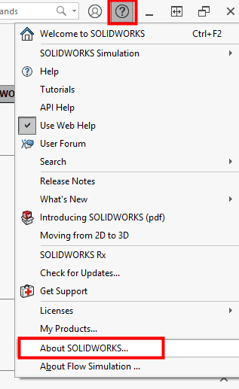
Click the Help menu (question mark icon in the top right).
-
Select About SOLIDWORKS.
-
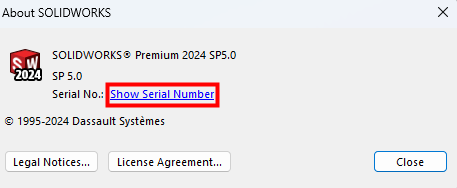
Select Show Serial Number.
-
Your serial number will be displayed in the dialog box.
Method 2: Through Windows Control Panel (Standalone and Network Licenses)
This method is best used for systems with SOLIDWORKS installed, but you are unable to launch it successfully. This will provide the serial number that is being used by a specific client installation.
-
Access Control Panel > Programs > Programs and Features from the Windows Start menu.
-
Locate SOLIDWORKS in the list of installed applications, right-click the entry, and select Change.
-
Select Modify your installation, then click Next.
-
The serial number will be shown on the Product Selection screen.

Method 3: SolidNetWork License Manager (Network Licenses Only)
This method is best used when you have multiple network serial numbers, and you would like to collect all of them at one time. This will provide all serial numbers shared by a network license manager.
-
On the license server, open the SolidNetWork License Manager Server from the Windows Start Menu.
-
Go to the Server Administration tab.
-
Click Modify..., then select Activate/Reactivate a product license and click Next.
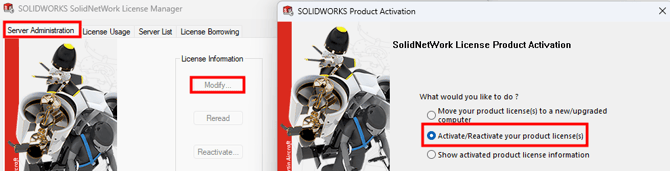
- Select Next on the License Server Information page.
-
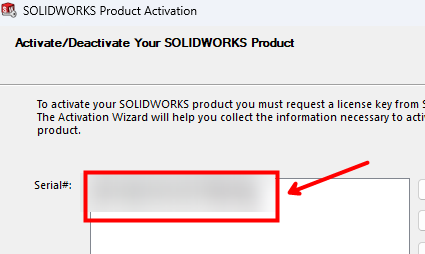
The serial number(s) will be displayed on the activation screen.
Method 4: Using the Windows Registry (Standalone and Network Licenses)
WARNING: Editing or deleting registry values can affect system stability. Use this method for read-only viewing only unless directed by IT or support personnel.
If you are unable to launch SOLIDWORKS, the installation modification dialogue window, or SolidNetWork License Manager Server for any reason, this method can be used to obtain the serial numbers from the registry. It is not recommended to make any changes to the values in this location.
Client Machine (Standalone or Network Licenses)
-
Open Registry Editor from the Windows Start menu.
-
Navigate to the following key: HKEY_LOCAL_MACHINE\SOFTWARE\SOLIDWORKS\Licenses\Serial Numbers
-
Serial numbers will appear as values under this key, labeled by product.
This method applies to both standalone installations and network clients.

License Server (Network Licenses Only)
-
Open Registry Editor from the Windows Start menu.
-
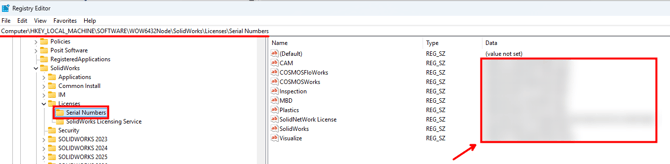
Navigate to the following key: HKEY_LOCAL_MACHINE\SOFTWARE\WOW6432Node\SolidWorks\Licenses\Serial Numbers
-
Serial numbers will appear as values under this key, labeled by product. If there are multiple serial numbers associated with any given product, they should be separated by a comma.
For further assistance, please contact the SWYFT Support team at support@swyftsol.com and we’ll be happy to assist.