
SOLIDWORKS Design Named User License (formerly 3DEXPERIENCE SOLIDWORKS) relies heavily on the ability to write temp files, and do it quickly. If you're experiencing issues despite a fast internet connection, a possible contributor can be network latency or routing between your ISP and Dassault Systèmes servers.
If you are using SOLIDWORKS Design Standalone (serial number managed) with the Design with SOLIDWORKS app, the same will apply to your situation.
Tip: If you are experiencing issues and are uncertain if your system is compatible with the Platform, you can download and run the Cloud Compatibility Checker and save the results as a .PDF to help you (or your friendly Value Added Reseller) determine the best next-steps!
Proper Web Browser:
-
Edge or Chrome are officially supported by Dassault Systèmes and tend to be less problematic than Firefox; While this will help reduce issues in general, this may or may not help with speed.
Clear your Temp Files:
-
As mentioned, the 3DEXPERIENCE relies heavily on temp files being able to be written fast in order to operate efficiently. Ending your PLM Services from the Windows Hidden Tasks area (see screenshot below), then clearing your Web Browser's cache and restarting can help with overall Platform performance .
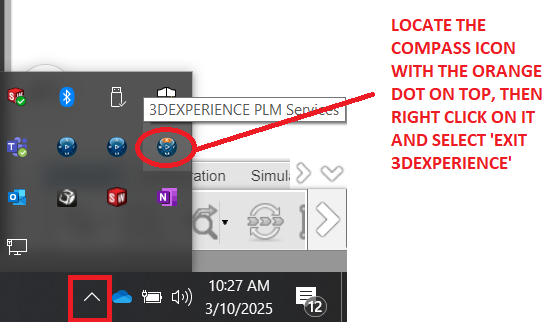
Windows Security can be a factor:
-
Check your Controlled Folder Access. To do that, Go to your Start Menu , type Windows Security, and open that app. Then select Virus & threat protection, and click on Ransomware Protection. If controlled folder access is enabled, it can silently block or slow cache writes. To resolve it either; disable it or explicitly allow...
- SLDWORKS.exe
- swCEFSubProc.exe
- 3DEXPERIENCELauncher.exe
Antivirus Software:
-
If you have any AV running, try temporarily disabling it to see if it speeds up the process. If so, or if you know you have a particularly stringent AV software running, you can see this article for some general directions on how you can whitelist 3DEXPERIENCE within your active AV software.
SOLIDWORKS Rx Maintenance:
-
For the most robust cleaning without having to navigate to hidden folders in your File Explorer, try the built in Rx tool!
- For SOLIDWORKS Design 2025 or newer customers, type "rx" in your Windows Startup search and select SOLIDWORKS Rx [product year]
- For those on older versions of SOLIDWORKS, start SOLIDWORKS, then select the "?" in the top right and find Rx in the dropdown.
- After the Rx interface pops up, select the 'troubleshooting' tab (or 'system maintenance' if on 2025 or older)
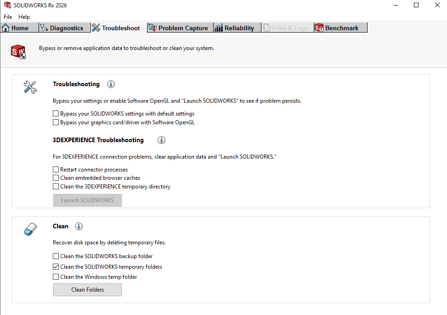
- Select all applicable folders and allow it to clean these folders for you (please note, if you have not performed this before it may take some time)
- It is recommended to do this periodically to maintain the smoothest 3DEXPERIENCE and SOLIDWORKS experience possible!
Summary:
While none of these steps are expected to provide night-and-day difference in speed, keeping up with your system maintenance and security settings can help you get the most out of your Platform experience!
If you are still experiencing latency issues, gathering information such as the Cloud Compatibility Checker results can help with troubleshooting. If the issue persists, please contact the SWYFT Support team at support@swyftsol.com for assistance.