
Note: This applies only to SOLIDWORKS Design Named User Licenses (Formerly 3DEXPERIENCE SOLIDWORKS), not Standalone or Network licenses. If you are experiencing issues with your Standalone or Network licenses, please contact support@swyftsol.com and one of our team will be happy to help!
Installing the HotFix to Resolve the Behavior
NOTE: If you carried out any steps previously where you manually downloaded the WebView2 Runtime and added system variables, you must carry out the steps to reverse this workaround before proceeding with installing the final HotFix (see below).
A new Hotfix is now available live on the Platform which will automatically apply the fix for this behavior.
-
-
Please log into your Platform like normal
- Follow these instructions to update your SOLIDWORKS Design program
-
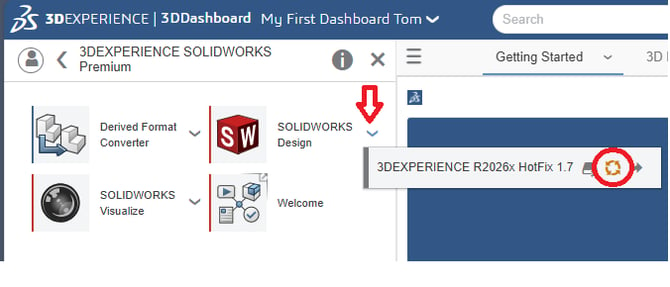
Removing the System Variables From the temporary WebView2 Workaround
If you performed the temporary workaround as provided before the above patch, please see below to reverse those steps. If you did not perform those steps, you can ignore these steps.
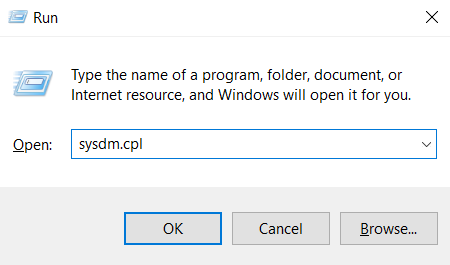
- Press Win+R or start the run command
- Type in the following and click OK:
- sysdm.cpl
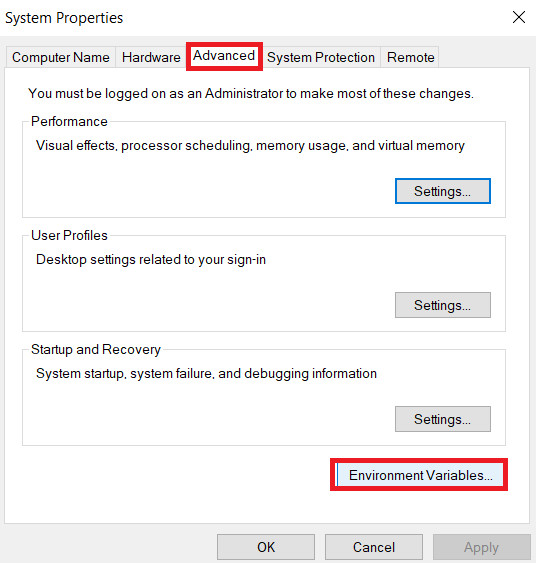
- In the window that pops up, click the Advanced tab, then Environment Variables
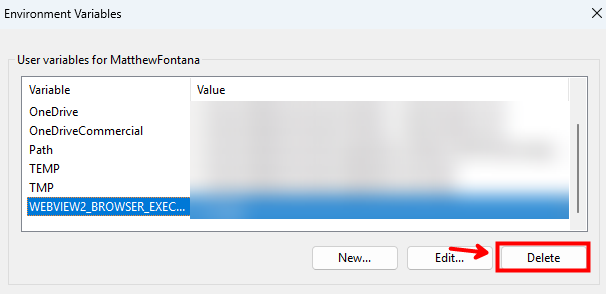
- In the top half click on the variable titled WEBVIEW2_BROWSER_EXECUTABLE_FOLDER, and select Delete
- Click OK three times to close all of the System Variable windows
- IMPORTANT STEP - RESTART YOUR COMPUTER - if you do not restart, these changes will not take effect.
- Proceed with the steps at the beginning of this article to install the HotFix.
Still experiencing issues?
If you have tried the steps above and are still experiencing issues, please contact the SWYFT Support team at support@swyftsol.com for further assistance.
- You may also be asked to provide a SOLIDWORKS Rx Problem Capture, so gathering this in advance can help expedite troubleshooting.
Instructions for gathering the Rx are available here.