
Important note: Starting November 15th, 2025, SOLIDWORKS has updated its product names. This article applies to SOLIDWORKS Design Named User Licenses. If you were using 3DEXPERIENCE SOLIDWORKS (also known as SOLIDWORKS Connected), you can continue with these instructions, as the steps will be the same.
Standard Uninstall:
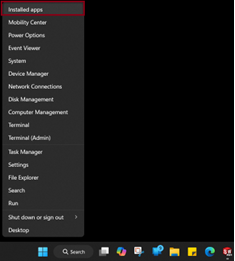
- Open Installed Apps: Right-click the Windows Start button and select Installed Apps.
- Find SOLIDWORKS Design Named User License: In the search bar, type "SOLIDWORKS" and locate the correct version (e.g., Dassault Systemes SOLIDWORKS 3DEXPERIENCE R20XXx). If multiple versions exist, uninstall only the one labeled SOLIDWORKS 3DEXPERIENCE.
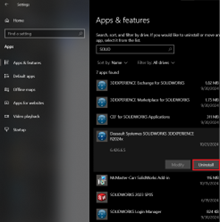
- Uninstall: Select the uninstall option, then Confirm to uninstall by clicking “Yes” and follow the prompts.
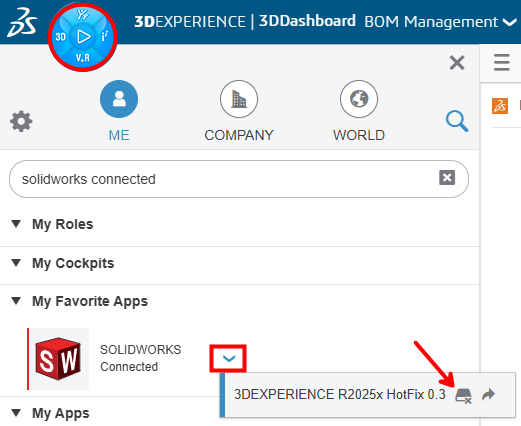
NOTE: Alternatively, you can kick off the uninstallation process directly from the 3DEXPERIENCE platform.
If at any point you need to reinstall SOLIDWORKS Design, you can follow the steps in this guide.
Intermediate Uninstall:
- Perform the Standard Uninstall steps
- Uninstall the following prerequisite applications
- Microsoft Visual C++ 2015-2022 Redistributable (x64)
- Microsoft Visual C++ 2015-2022 Redistributable (x86)
- CEF for SOLIDWORKS Applications
- Visual Basic (VBA) 7.1
- Download the attachment (Uninstall_VBA.BAT)
- Right-click on the downloaded batch file and select Run as Administrator
If at any point you need to reinstall SOLIDWORKS Design, you can follow the steps in this guide.
Advanced Uninstall:
CAUTION: Prior to deleting any of the %public% or %programdata% folders in the next step, we recommend that you create a backup.
CAUTION: Exercise caution when editing or deleting entries in the Windows Registry, as modifying the wrong entry can cause significant system issues. It is strongly recommended you backup your registry keys beforehand.
- Perform the Standard and Intermediate Uninstall steps
- Return to the Add/Remove programs menu and uninstall the following applications
- 3DEXPERIENCE Launcher
- Dassault Systemes Software VC11 Prerequisites (x86-x64)
- Microsoft Visual Studio Tools for Applications 2022
- SOLIDWORKS Login Manager
- WPTx64
- Delete the following folders (some of these may not exist as a result of the standard uninstall process) - See Caution note above
- %programfiles%\Dassault Systemes\SOLIDWORKS Design Named User License
- %programfiles%\Common Files\SOLIDWORKS Shared
- %programfiles(x86)%\Common Files\SOLIDWORKS Shared
- %public%\Documents\Dassault Systemes
- %public%\Documents\SOLIDWORKS
- %programdata%\DassaultSystemes\3DEXPERIENCELauncher
- %programdata%\SOLIDWORKS
- %programdata%\SolidWorks HotFix
- %appdata%\DassaultSystemes
- %appdata%\SolidWorks
- %localappdata%\TempSWBackupDirectory
- %localappdata%\DassaultSystemes
- %localappdata%\SolidWorks
- %temp%\swcefcache
- Delete the following registry keys (requires administrative rights) - See Caution note above
- HKEY_CURRENT_USER\Software\Dassault Systemes\SolidWorks Shared
- HKEY_CURRENT_USER\Software\Dassault Systemes\SolidWorksPDM
- HKEY_CURRENT_USER\Software\SolidWorks
- HKEY_CURRENT_USER\Software\Srac
- HKEY_LOCAL_MACHINE\Software\Dassault Systemes\SolidWorksPDM
- HKEY_LOCAL_MACHINE\Software\Dassault Systemes\SwxConnectors
- HKEY_LOCAL_MACHINE\Software\Dassault Systemes\V6_Common
- HKEY_LOCAL_MACHINE\Software\SolidWorks
- HKEY_LOCAL_MACHINE\Software\Srac
- HKEY_LOCAL_MACHINE\Software\WOW6432Node\SolidWorks
- Follow the steps to reinstall SOLIDWORKS Design following the steps in this guide.
Note: If you are still experiencing issues installing, launching, or using the software after performing an advanced uninstall, please contact the SWYFT Support team at support@swyftsol.com for further assistance. Please have screenshots and a description of the steps taken ready to help expedite troubleshooting.
How to Resolve the 'An Incomplete Installation Has Been Found' error
Collecting logs for Troubleshooting
Fixing the 'Unable to Retrieve Installation Data' error message