
Overview
Launching SOLIDWORKS Design with a Named User License requires two key components:
- The user must have the correct SOLIDWORKS license assigned.
- The correct SOLIDWORKS tier (i.e., Standard, Professional, Premium) must be installed.
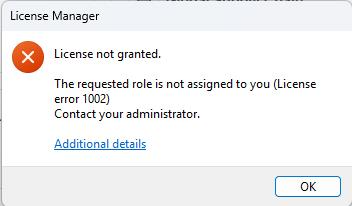
Error 1002 typically appears when one of these conditions is not met. This article walks you through the steps to resolve the issue and successfully launch SOLIDWORKS Design from the platform.
Confirm License Assignment
NOTE: The following steps need to be carried out by a 3DEXPERIENCE platform administrator.
- Log into the 3DEXPERIENCE platform.
- Open the Compass app list (blue circle with the play button in the top left).
- Open the Members Control Center app.
- Click on the information icon next to the account that is experiencing this error message.
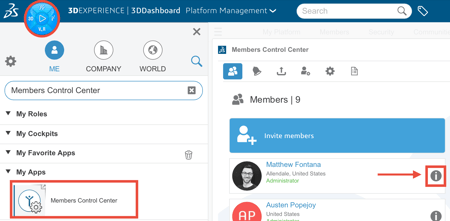
- Confirm SOLIDWORKS is assigned to the account.
Confirm the Correct Tier of SOLIDWORKS is Installed
- Log into the 3DEXPERIENCE platform.
- Open the Compass app list (blue circle with the play button in the top left).
- Click on the arrow to the right of the SOLIDWORKS Design application.
- If there is an update icon on the fly out that appears, click on it and proceed with the update.
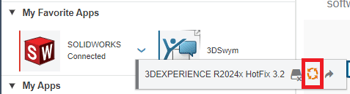
- Repeat steps 3-4 until there is no update icon available on the fly out.
- Click on the SOLIDWORKS application itself to launch SOLIDWORKS Design from the web browser.
NOTE: Be sure to launch SOLIDWORKS Design from the app list on the web browser, as the desktop shortcut may be holding a reference to a different tier (i.e., Standard, Professional, Premium), which can result in this issue.
For further assistance, please contact the SWYFT Support team at support@swyftsol.com and we’ll be happy to assist.