
PDM Professional is not supported on SQL Server Express and runs on SQL Server Standard licensing for most vault sizes. This guide only applies if you have SQL Server Express or your current SQL Server edition doesn't meet performance needs for your specific PDM vault, such as database size limits, memory limits, or high-availability features. This same process is used if you are upgrading due to performance limitations with your SOLIDWORKS Electrical installation. Confirm this before proceeding, since skipping an unnecessary SQL upgrade saves time and licensing cost.
Before you start
Please confirm you have the following.- A completed SQL instance backup.
- Sysadmin access to the SQL Server instance.
- A valid SQL Server Standard license/edition key.
- A maintenance window, since the SQL Server service will restart during the edition upgrade.
Create a backup of your SQL instance
As a best practice, please create a backup of your entire SQL instance. Please work with your IT team to complete this if unfamiliar with the process.
Run the edition upgrade
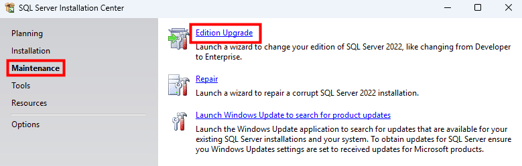
- On the SQL Server, open the SQL Server Installation Center.
- Select Maintenance, then select Edition Upgrade.
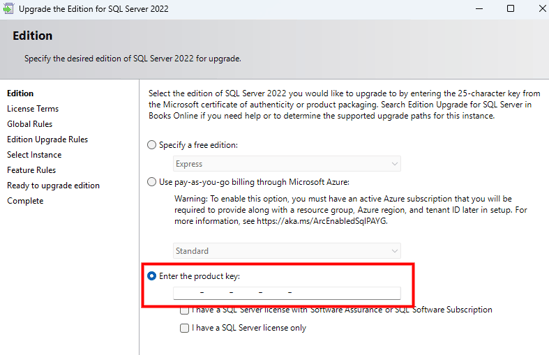
- Enter your SQL Server Standard product key when prompted, and click Next.
- Proceed through the following pages, selecting the appropriate instance when prompted.
- Review the summary screen, then click Upgrade to complete the upgrade.
For further support, submit a ticket or access support contact information at https://www.swyftsol.com/support.