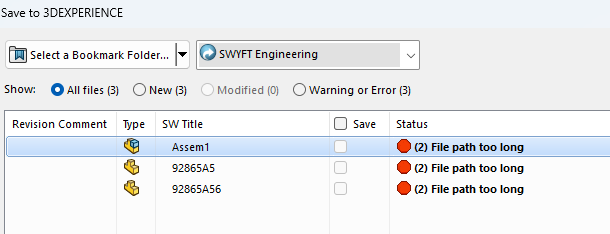
When saving files from SOLIDWORKS to the 3DEXPERIENCE platform, users may encounter a “File Path Too Long” error, even when the original file path appears to be well within acceptable limits. This behavior is not caused by the visible file location alone, but by how 3DEXPERIENCE generates additional hidden files and reconstructs paths within the local cache. Understanding how these paths are built and what is actually being measured is key to preventing and resolving this issue.
Contents:
Root Cause
The “File Path Too Long” error occurs when the total length of the file’s path exceeds 246 characters.
A file path includes:
- The drive or storage location
- Folder structure
- File name
For example: C:\Projects\CustomerA\ProductLine\Assembly\Subassembly\Components\Fasteners\91251A550_Black-Oxide Alloy Steel Socket Head Screw.SLDPRT
This example is 133 characters. Well within the limit. However, this is not actually what is being measured against the limit of 246.
Each additional folder or longer file name increases the total path length. When files are saved to 3DEXPERIENCE, two hidden files are also created and saved, a .v6 and .srv.v6 file. Ultimately, the .srv.v6 file will be the longest and is what has to remain at or under 246 characters.
When a file is saved locally (outside of the 3DEXPERIENCE local cache) and then saved to 3DEXPERIENCE, the system creates a mirrored directory structure inside the local cache and the .v6 and .srv.v6 files are stored in this location locally before being saved to 3DEXPERIENCE.
For example, if we saved the file from the example above to 3DEXPERIENCE, it will generate a corresponding structure within the local cache, similar to:
C:\<LOCAL_CACHE_PATH>\Remote Files\#1\C\Projects\CustomerA\ProductLine\Assembly\Subassembly\Components\Fasteners
Within this location, the platform creates:
- A .v6 file (PartName.SLDPRT.v6)
- A .srv.v6 file (PartName.SLDPRT.srv.v6)
Because the original full local path is embedded within the cache structure, the total path length increases significantly.
This is why files that appear to have acceptable path lengths locally can still fail when saved to 3DEXPERIENCE. The generated .srv.v6 path exceeds the allowable limit.
The default local cache path differs if you have a Named User vs. a Standalone/Network license.
SOLIDWORKS Design Named User License Default Local Cache for 3DEXPERIENCE: C:\Users\<USERNAME>\AppData\Local\DassaultSystemes\3DEXPERIENCE\<TENANT ID>(<3DEXPERIENCE USERNAME>)\SOLIDWORKS Design Standalone/Network License Default Local Cache for 3DEXPERIENCE: C:\3DEXPERIENCE\
If we were to continue the scenario from above with the SOLIDWORKS Named User license, the resulting .srv.v6 file path would be as follows.C:\Users\MatthewFontana\AppData\Local\DassaultSystemes\3DEXPERIENCE\R1132101190143(mwfontana)\Remote Files\#1\C\Projects\CustomerA\ProductLine\Assembly\Subassembly\Components\Fasteners\91251A550_Black-Oxide Alloy Steel Socket Head Screw.SLDPRT.srv.v6
This ends up with a total character count of 250, which would exceed the limit.
This is especially easy to exceed if files are saved locally to a location synced to OneDrive, and then saved to 3DEXPERIENCE, as this extends the file paths even further.
Best Practices to Prevent the Error
1. Simplify Folder Structures
Avoid excessive nesting. Keep structures as flat as possible while maintaining clarity.
2. Shorten File Names
Reduce unnecessary descriptors in file names. Focus on meaningful but concise naming.
Example:
- Instead of: 91251A550_Black-Oxide Alloy Steel Socket Head Screw.SLDPRT
- Use: 91251A550.SLDPRT
3. Save/Transfer Files to Local Cache Before Saving to 3DEXPERIENCE
When creating new files, save them to the local cache location first before saving to 3DEXPERIENCE. If files already exist in alternative location, these can be moved to the local cache through the Pack and Go command to ensure all referenced files are transferred as well.
This will remove the need for the mirrored Remote Files folder structure in the local cache.
Using the example above, this would go from:C:\Users\MatthewFontana\AppData\Local\DassaultSystemes\3DEXPERIENCE\R1132101190143(mwfontana)\Remote Files\#1\C\Projects\CustomerA\ProductLine\Assembly\Subassembly\Components\Fasteners\91251A550_Black-Oxide Alloy Steel Socket Head Screw.SLDPRT.srv.v6
Which is 250 characters, which exceeds the limit, to:
C:\Users\MatthewFontana\AppData\Local\DassaultSystemes\3DEXPERIENCE\R1132101190143(mwfontana)\91251A550_Black-Oxide Alloy Steel Socket Head Screw.SLDPRT.srv.v6
Which is 159 characters, and well within the limit.
4. Move the Local Cache to a Shorter Directory
If the file path is still too long after transitioning the files to the local cache, then you may need to change the location of your local cache to a shorter directory.
NOTE: If you have a standalone or network license of SOLIDWORKS Design, administrator permissions will be needed to move the location of the local cache for 3DEXPERIENCE. Administrator permissions are not required if you have a Named User license of SOLIDWORKS Design.
-
Open Command Prompt
-
Navigate to the CacheMove.exe location
-
Enter the following command if you have a SOLIDWORKS Named User License:
cd C:\Program Files\Dassault Systemes\B<VERSION>xcadconnectors\win_b64\USWC- e.g.,
C:\Program Files\Dassault Systemes\B428xcadconnectors\win_b64\USWC - B428 represents the 2026 release.
- e.g.,
-
Enter the following command if you have a SOLIDWORKS Standalone/Network License:
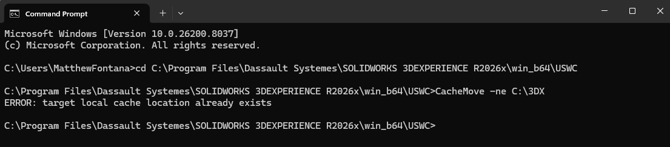
cd C:\Program Files\Dassault Systemes\SOLIDWORKS 3DEXPERIENCE R<VERSION_YEAR>x\win_b64\USWC- e.g.,
cd C:\Program Files\Dassault Systemes\SOLIDWORKS 3DEXPERIENCE R2026x\win_b64\USWC
- e.g.,
-
- Enter the following command to redirct the cache:
CacheMove -ne <DESIRED_CACHE_LOCATION>- e.g.,
CacheMove -ne C:\3DX
- e.g.,
NOTE: This command will create the folder for you. If the folder already exists when you attempt to run this command, it will fail.