
This article pertains only to those who have SOLIDWORKS Perpetual licenses and explains what to expect and how to successfully install SOLIDWORKS when your license is no longer on active maintenance. This is not for customers that are currently on an active maintenance program or any annual subscription licenses.
When a SOLIDWORKS subscription expires, access to software downloads through the SOLIDWORKS Customer Portal and the Installation Manager download function is disabled.
This does not mean you have lost rights to use your perpetual license for the core SOLIDWORKS program or other perpetual licenses you have purchased, it simply means installation media must be obtained through a different method.
Any maintenance-dependant packaged programs, such as Visualize, CAM, and the 3DEXPERIENCE Platform are not available if your maintenance has expired. If you need to restore access to these services, please contact your Value Added Reseller (VAR).
Customers off subscription remain entitled to install any version of SOLIDWORKS that was released before their subscription expired, including all service packs of that version. For example, if your maintenance expired in July of 2023, you are entitled to SOLIDWORKS 2023.
Because eligibility is tied to timing, it is very important to know the exact maintenance expiration date for your license. before requesting your version-year of the software. Your reseller or support provider can confirm this and ensure you receive installation media for the correct version so your installation remains properly aligned with your entitlements.
Step 1: How to obtain installation files
Since direct downloads are not available, installation media must be provided separately. Please contact your VAR or SOLIDWORKS Servicer to obtain a full dataset.
Tip: If you still have your original installation DVDs, you can use those to complete the installation starting with step 2 below.
In most cases:
-
Full installation datasets are distributed by your Value Added Reseller (VAR) or support provider upon request.
-
Your serial number and version eligibility will be verified before files are provided.
- Installation media more than three version-years older than the most current version may require special request and additional lead time. Please provide sound reasoning for older version when requesting from your VAR.
- This will often come in the form of one or more zip files and can total up to 16 gigabytes of data.
Step 2: Installing SOLIDWORKS from a full dataset
Once you have downloaded the full installation dataset:
-
Extract the installation files (if applicable)
-
Extract the compressed dataset to a local folder. Use a reliable extraction utility (such as 7-Zip) to avoid file integrity issues.
-
-
Launch the installer
- In Windows File Explorer, navigate to the extracted or downloaded files folder
-
Right-click
setup.exeand select Run as administrator.-
This is an important step and will require local admin rights on your computer.
-
-
Prevent download attempts during installation
-
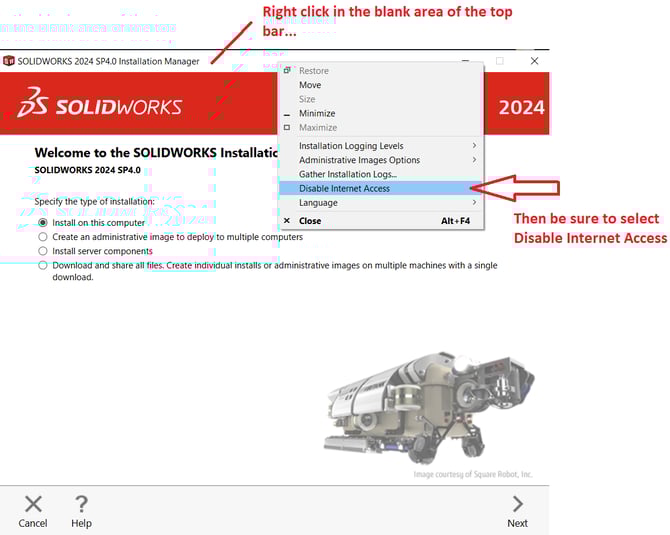
Right-click on the title bar of the Installation Manager and select "Disable Internet Access"
-
This prevents the installer from attempting to retrieve files online, which would cause the installation to fail when off subscription.
-
-
-
Proceed through installation normally
-
Enter your SOLIDWORKS serial number when prompted.
- If you have other perpetual licenses, such as Simulation Perpetual, you can include that at this time.
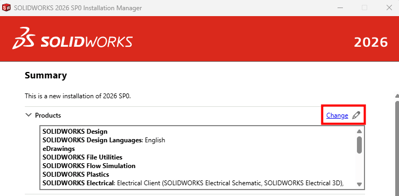
- Select the programs and options you wish to include
- Complete the install process.

-
The installer will use the local dataset instead of downloading components.
-
Once the installation is complete, you can launch and use SOLIDWORKS like normal!
When to contact support
You should contact SWYFT Solutions Support if:
-
You are unsure which version you are entitled to install
-
You need a full installation dataset
-
You are reinstalling after hardware replacement or system rebuild
For further assistance, please contact the SWYFT Support team at support@swyftsol.com and we’ll be happy to assist.