
Prerequisites
Before beginning the troubleshooting, confirm the following:
- You have local admin rights.
- You know your computer's GPU name and model number.
- Note, you can check your GPU by going to your Windows Search bar and type 'system' and hit enter to load System Information. Then expand the 'Components' section and select Display. Keep this information handy as you work through this article.
TIP: If you are having trouble starting SOLIDWORKS Design or are experiencing a situation where you are unable to change any settings within SOLIDWORKS, you can follow the steps in this article to start in OpenGL mode and bypass your GPU altogether.
How to Troubleshoot SOLIDWORKS Crashing Issues
Toggle your 'Enhanced Graphics Mode' setting
- Start SOLIDWORKS, go to Options --> Performance, and note whether Enhanced Graphics Performance is currently ON or OFF.
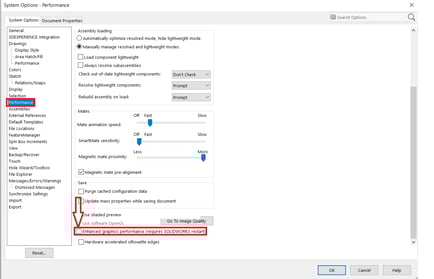
- Change its state, restart SOLIDWORKS, and try to recreate any unwanted behavior. If this fixes your issues and the performance and appearance are acceptable, no further actions are required.
Check your GPU driver
- Use the Hardware Certification page to see which driver version is recommended for your specific GPU, then compare it with the driver currently installed. If it needs to be updated, there’s a link directly to the manufacturer’s download page. For the sake of this article, you can ignore the "Vendors" and "Models" category and just make sure your GPU is listed.
Tip: Sometimes GPU manufacturers release the newest drivers before SOLIDWORKS has verified them. Please check your version-year of SOLIDWORKS as well as the driver version. If your version is too-new, it may be worth it to try rolling back to the certified driver listed in the above webpage.
If your GPU is not listed as certified
If your card doesn’t appear in the certified hardware list for any given year, it’s not certified for that version-year of the software. In that case:
-
Update your GPU driver to the latest available.
-
Re-try toggling the Enhanced Graphics setting after updating.
-
For NVIDIA GeForce cards, check if a Studio Driver is available with your card. These are typically more stable for SOLIDWORKS than the standard Game Ready drivers.
Still experiencing issues?
If you have tried the steps above, are using a certified GPU, and are still experiencing issues, please contact the SWYFT Support team at support@swyftsol.com for further assistance.
- You may also be asked to provide a SOLIDWORKS Rx Problem Capture, so gathering this in advance can help expedite troubleshooting.
Instructions for gathering the Rx are available here.