
This article refers to the SOLIDWORKS Design Named User License (Formerly 3DEXPERIENCE SOLIDWORKS) version, and not the SOLIDWORKS Design Standalone (Serial-number managed) version.
Option 1 - Reassociate the language resource via your Windows Command Prompt:
-
Press [WIN+r] or type "CMD" in your Windows Search bar
- Copy and paste the following line (INCLUDING the quote marks) into the prompt and press [Enter]
- "C:\Program Files\Dassault Systemes\SOLIDWORKS 3DEXPERIENCE R2026x\win_b64\resources\MSI\SolidWorksR428FD01PP2\hotfix.exe" /reinstall /s /k
- You will be prompted to allow the program to make changes
- You will see a screen similar to below:
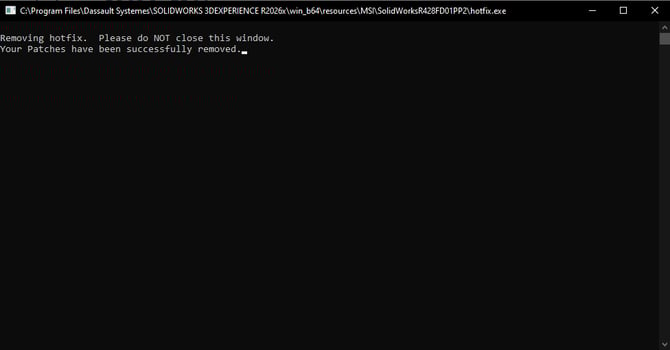
- Restart SOLIDWORKS Design. This should fix the language resource mismatch.
- If it does not, please continue Option 2
- If it does not, please continue Option 2
Option 2 - Uninstall/Reinstall:
- (Optional) If you have extensive customizations to your SOLIDWORKS UI, Run the Copy Settings Wizard
- See the below article for steps on how to uninstall SOLIDWORKS. In most cases, the standard level of uninstall will work in this case.
-
Once that is complete, you can follow these steps to reinstall
Summary:
Usually, a quick reinstall of the language pack resolves the issue. If the problem persists after reinstalling the language pack or performing a full uninstall and reinstall, please contact SWYFT Support at support@swyftsol.com for further assistance.